Easy to Use Restaurant Menu Editor
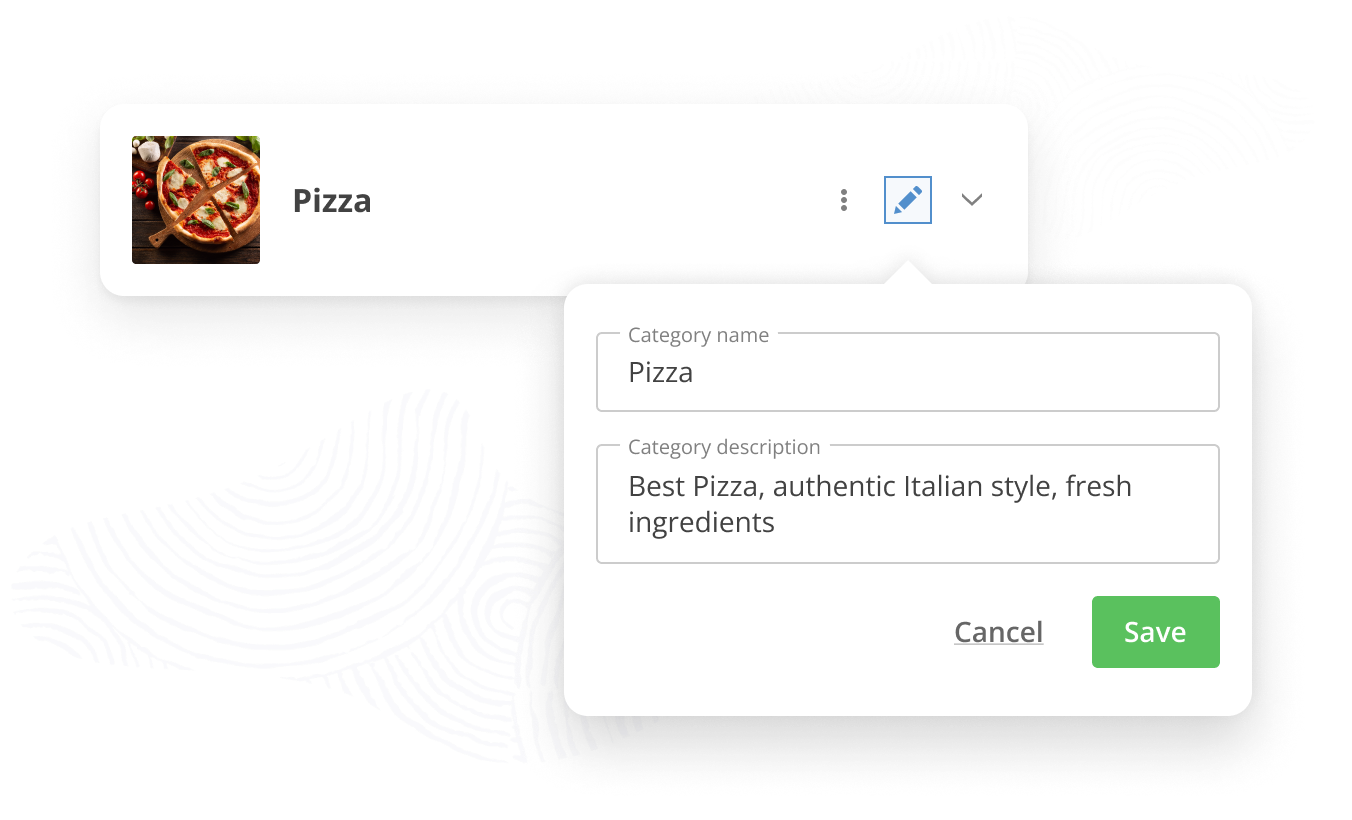
Manage your online and in-store POS menu from one dashboard. Simplicity at its core.
How to get started with this easy-to-use
restaurant menu editor
Optimize Kitchen Setup
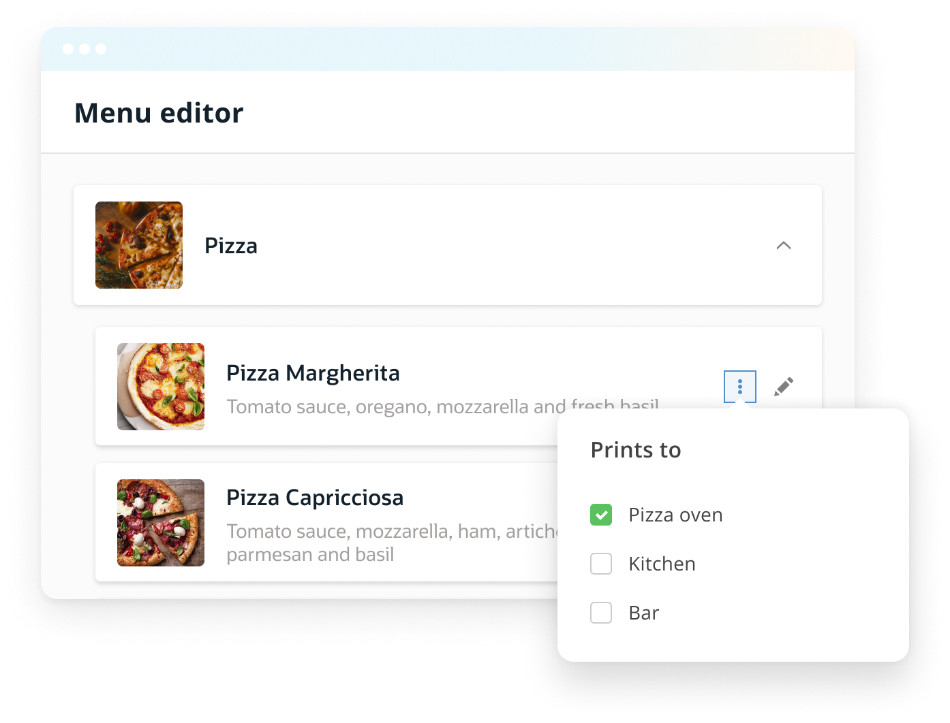
Send specific menu items
to designated printers
Connecting printers to kitchen stations has never been this easy.
Purchase additional printers and then specific order information to various designated food stations to create efficiency in your back-of-house operations.
Fast Track Menu Changes
Hide or show special menu items on particular days
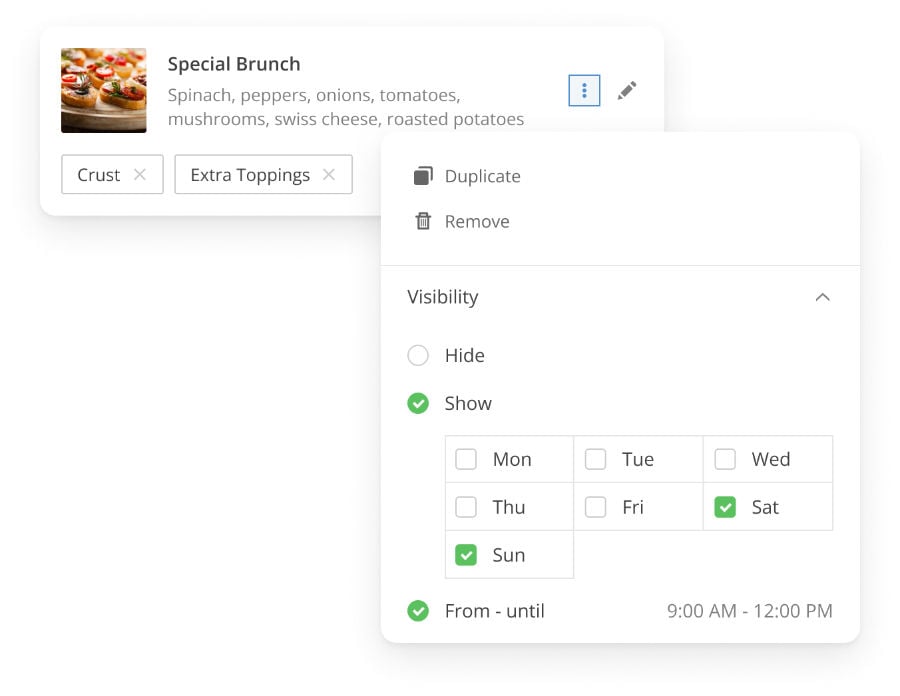
With the restaurant menu editor, easily choose to hide food and beverage items from the menu; regardless of the reason.
Alternatively, choose to have desired menu items available on particular days of the week.
Create buzz and exicitment with specific “day of the week” specials.
Stock Management made Simple
Control food stocks to never get an order wrong
Stay on top of the inventory, by simply setting up the stock quantity of your menu items. Avoid disgruntled customers who are told last minute that their order will not go through as a result of running out of certain items.
Selling Out Fast?
Avoid out of stock mishaps
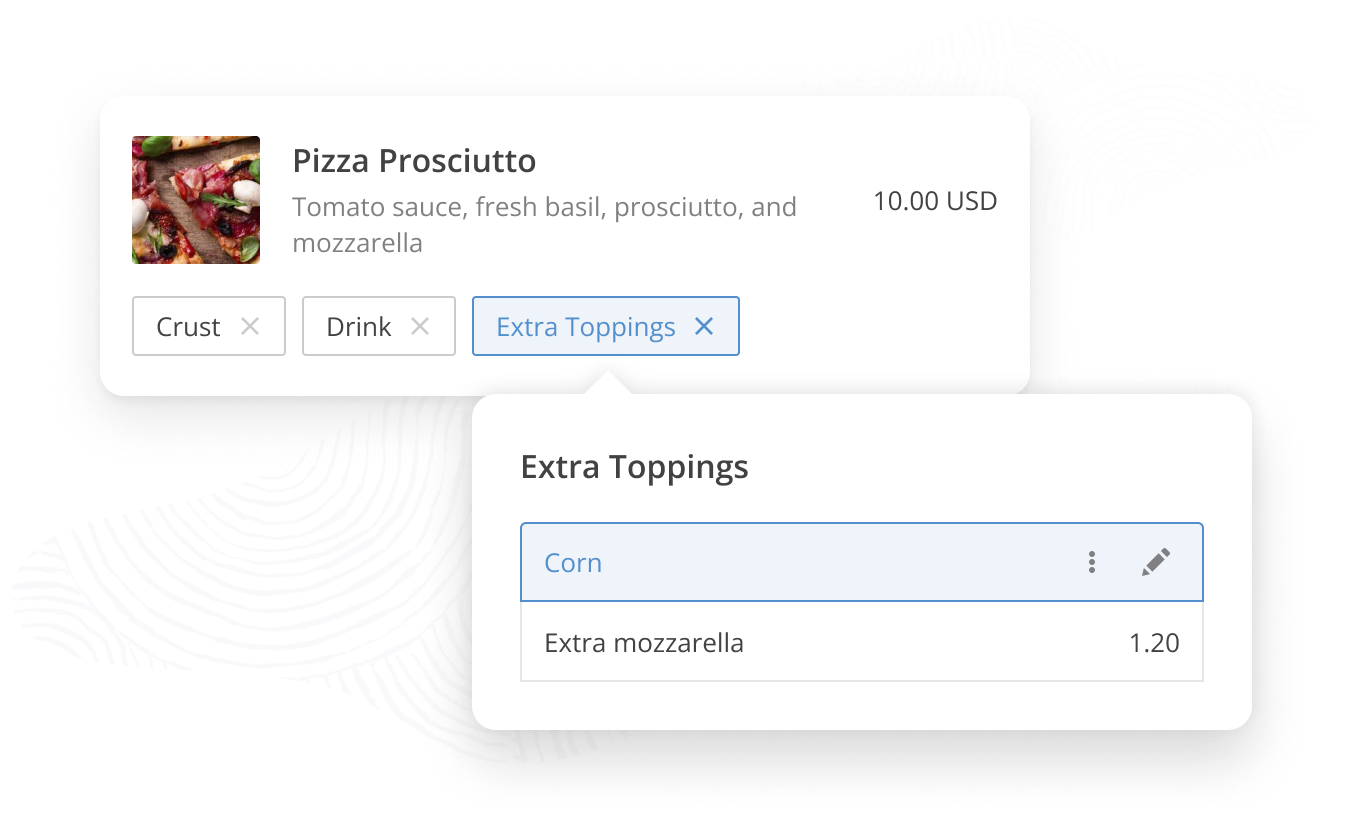
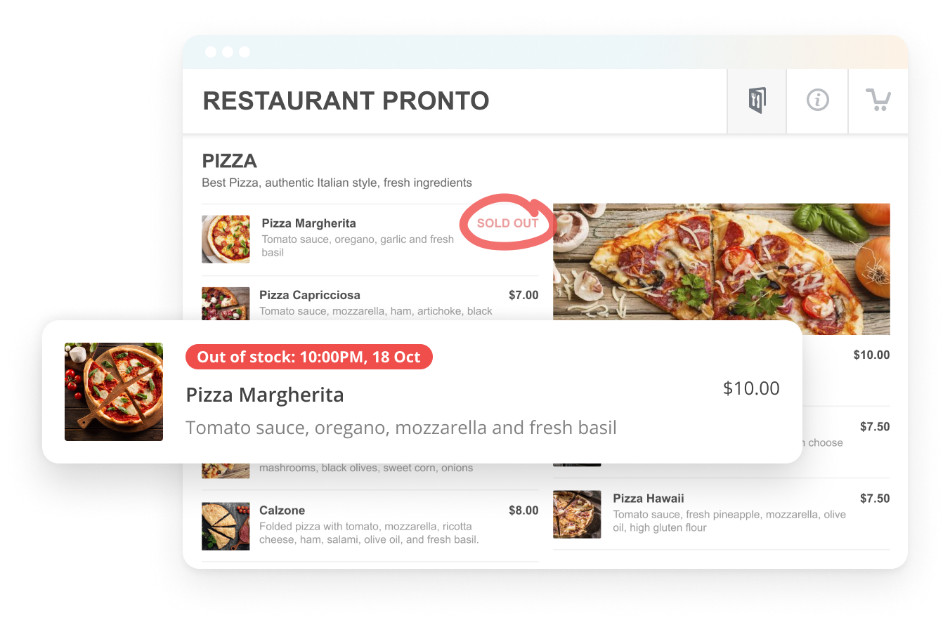
Adjusting the availability of your menu items and modifiers is as easy as selecting the “Out-of-Stock” option.
Once your ingredients are back in stock, simply remove the “sold out” label.
Immersive Experience
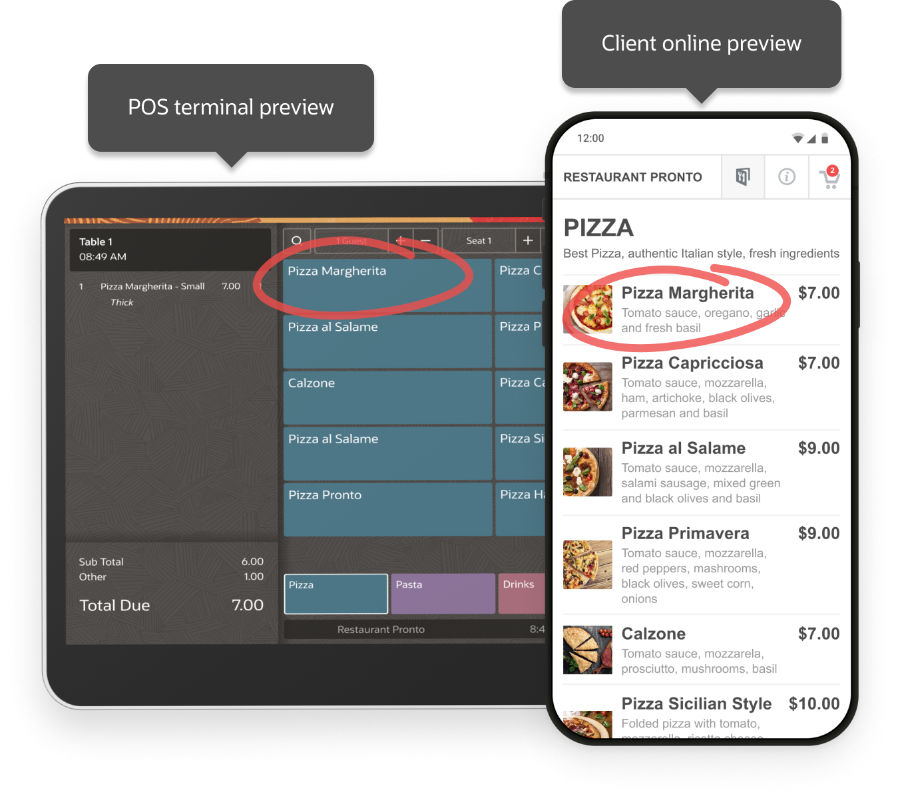
Preview menu updates as a customer or employee
Visualize the full customer experience by previewing the menu changes that food clients will see in the menu widget.
Curious to vizualize how your staff sees menu updates across the POS terminal? Use the Waiter preview option.
Saved changes are immediately deployed across your restaurant menu widget & POS menu.
For Food Order Pro Customers Only
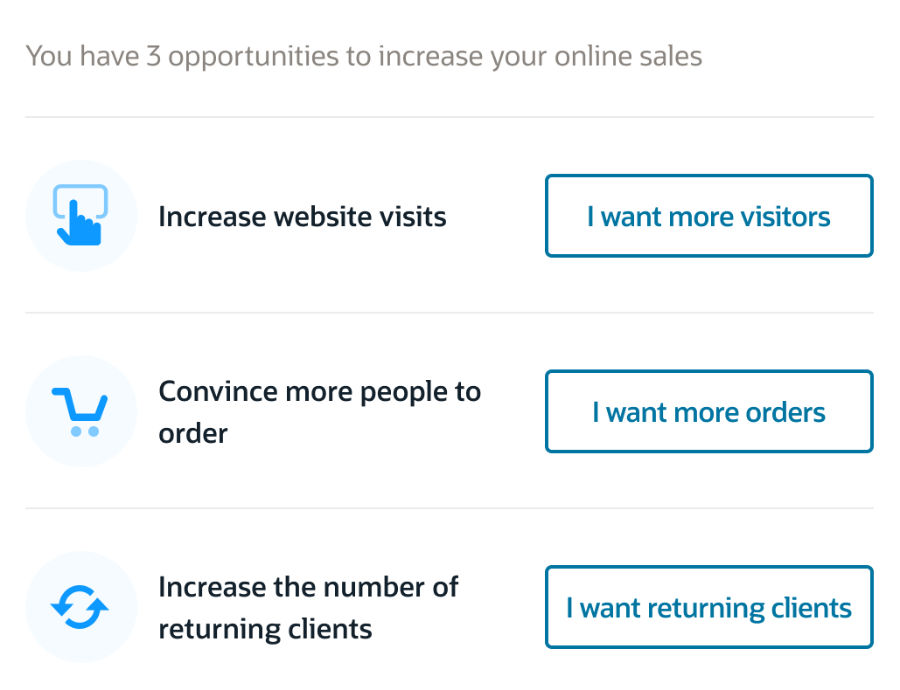
Client-advantage: get custom tips on how to lift online sales
Want to improve your online sales, but don’t know how? That’s where you can take advantage of our proven expertise and experience.